When a computer restarts and displays the message “undoing changes made to your computer,” the experience is often unsettling. The screen offers no progress bar, no countdown, and no clear explanation. Users are left wondering whether their device is frozen, broken, or quietly repairing itself. The core answer to the most common question is straightforward: this message appears when the operating system is reversing a recent change that failed to apply correctly, and the time it takes can range from under half an hour to several hours in unusual cases.
In most situations, the system is not malfunctioning. It is actively protecting itself. Modern operating systems, particularly Windows, are designed to prioritize stability. When an update, driver installation, or configuration change cannot be completed safely, the system initiates an automatic rollback to the last stable state. This rollback involves system files, settings, and internal configurations rather than personal documents. The lack of visible feedback makes the process feel longer than it is, which often leads users to interrupt it prematurely.
Understanding what triggers this message, what the computer is doing during this phase, and how long is considered normal can prevent unnecessary panic and reduce the risk of data loss. This article explains the rollback mechanism, realistic time expectations, and the practical steps users should take if the process appears stalled, all while placing the experience in the broader context of system reliability and update safety.
What “Undoing Changes Made to Your Computer” Actually Means
The phrase “undoing changes made to your computer” is not an error message in itself. It is a status message indicating that the operating system has detected a problem during the application of a recent change and has decided to reverse it. These changes most commonly include operating system updates, cumulative security patches, feature updates, or hardware driver installations.
Internally, the system compares the current state of critical files and settings against a previously recorded stable snapshot. If discrepancies suggest that continuing forward could leave the system unstable or unbootable, the rollback process begins. This mechanism exists to prevent partial installations that could corrupt system components or prevent the computer from starting properly.
Importantly, this rollback process is automated. The user did not necessarily do anything wrong, and the message does not imply permanent damage. It reflects a design choice that favors reliability over speed, even if that choice results in a temporarily unnerving user experience.
The Role of System Restore and Rollback Mechanisms
At the heart of this process is the concept of system restore points and transactional updates. Before significant changes are applied, the operating system typically creates a snapshot of essential system components. These snapshots include system files, registry settings, installed programs, and configuration data. They do not include personal files such as documents, photos, or videos.
When a change fails, the system uses this snapshot to reverse the modifications. This can involve uninstalling updates, restoring previous driver versions, and rewriting configuration values. Because these actions occur at a low level, they must be completed before the system fully loads, which is why the message appears during startup.
This design allows computers to recover from failed updates without requiring user intervention. While not perfect, it has significantly reduced the number of systems rendered unusable by incomplete installations compared to earlier generations of operating systems.
How Long the Process Usually Takes
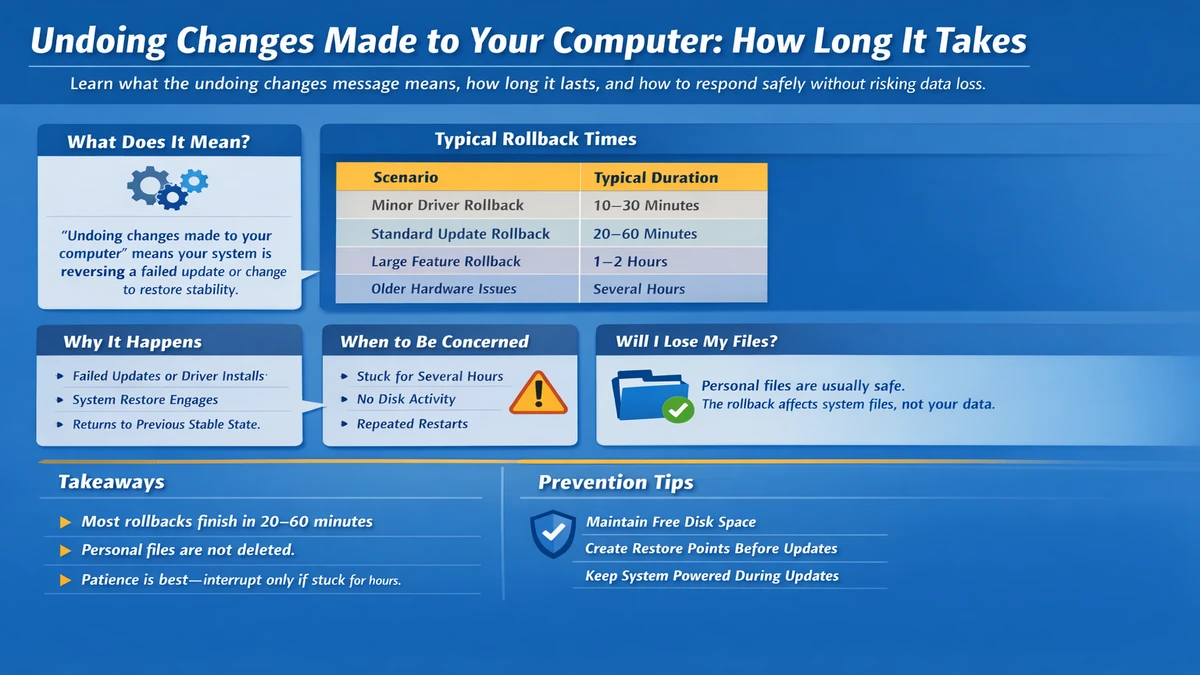
The time required to undo changes varies based on several factors, but most rollbacks complete within a predictable range.
| Scenario | Typical Duration |
|---|---|
| Minor driver or setting rollback | 10–30 minutes |
| Standard update rollback | 20–60 minutes |
| Large feature update rollback | 1–2 hours |
| Older hardware or disk issues | Several hours |
On modern systems with solid-state drives and healthy file systems, the process often finishes in under an hour. On older machines with mechanical hard drives, limited memory, or existing disk errors, the same rollback can take significantly longer.
It is also normal for the screen to appear unchanged for long stretches. The absence of visible progress does not mean nothing is happening. Many rollback operations involve disk verification and file replacement tasks that provide no user-facing feedback.
Why Some Rollbacks Take Much Longer Than Others
Several variables influence rollback duration. Hardware speed is one of the most significant factors. Solid-state drives can read and write data far faster than traditional hard drives, shortening the time needed to replace system files.
The size and complexity of the failed update also matter. A small security patch may involve a limited number of files, while a major feature update can affect thousands of components. The more extensive the change, the longer it takes to reverse.
System health plays an equally important role. If the file system contains errors or the disk has bad sectors, the rollback process may slow down as the system attempts to verify data integrity. Limited free disk space can also prolong the process, as the system struggles to manage temporary files during restoration.
When Waiting Is the Best Option
In most cases, the safest and most effective response is patience. Interrupting the rollback process by powering off the computer can increase the risk of corruption, particularly if critical files are being rewritten at the moment of interruption.
As a general guideline, waiting at least two hours before assuming the system is stuck is reasonable, especially on older hardware. During this time, signs of activity such as disk usage lights or fan noise often indicate that the process is still running.
Patience during this phase protects the integrity of the operating system and reduces the likelihood of needing more invasive recovery steps later.
Signs the Process May Be Stuck
While long rollbacks can be normal, there are situations where the system is no longer making progress. If the message remains unchanged for many hours with no disk activity and the computer repeatedly restarts into the same message, the rollback may have entered a loop.
Another warning sign is repeated automatic restarts without completing the process. This can indicate that the system is unable to restore a stable state using the available snapshots and requires manual intervention.
Recognizing these signs helps users decide when it is appropriate to move beyond waiting and begin recovery actions.
Safe Steps to Take If the Rollback Does Not Finish
If the system appears stuck after several hours, a controlled restart is often the first step. Holding the power button until the system shuts down, then restarting it, may trigger recovery options.
Many systems will automatically enter a recovery environment after multiple failed startup attempts. From there, users can access safe mode, system restore options, or automated repair tools. Choosing an earlier restore point can sometimes succeed where the automatic rollback did not.
In more persistent cases, using external installation or recovery media allows access to advanced repair tools. These tools can repair system files or roll back updates manually without affecting personal data.
Will Personal Files Be Lost During This Process?
One of the most common fears associated with rollback messages is data loss. Under normal circumstances, the rollback process does not delete personal files. Documents, photos, and other user-created content are not part of system restore snapshots.
However, this does not eliminate the importance of backups. In rare cases involving disk failure or severe corruption, data loss can occur independently of the rollback itself. Regular backups remain the most reliable safeguard against unexpected loss.
Preventing Future Rollback Issues
While not all rollback scenarios can be avoided, several practices reduce their likelihood. Keeping sufficient free disk space ensures that updates and restore points can be created reliably. Installing updates while connected to stable power prevents interruptions caused by sudden shutdowns.
Creating manual restore points before major changes provides additional safety. Although the system often creates them automatically, manual creation ensures a known good snapshot exists.
Regular system maintenance, including disk checks and driver updates from trusted sources, also reduces the risk of failed installations.
Expert Perspectives on System Rollbacks
Technology support professionals consistently emphasize that rollback messages represent a protective feature rather than a failure. One widely cited principle in system administration is that a reversible failure is preferable to a permanent one.
Another common expert observation is that perceived freezes are often simply slow operations occurring without user feedback. Modern operating systems prioritize completing critical tasks correctly over keeping users visually informed at every step.
A third expert consensus is that forced interruptions are a leading cause of compounded system issues. Allowing rollback processes to finish whenever possible significantly reduces the need for more drastic repairs later.
Takeaways
- The rollback message indicates a protective response, not immediate damage
- Most rollbacks complete within an hour, though some take longer
- Hardware speed and update size strongly affect duration
- Personal files are typically not affected by rollback processes
- Patience is usually the safest response
- Recovery tools are available if the process truly stalls
Conclusion
The message “undoing changes made to your computer” is a moment of uncertainty that reflects the complexity of modern operating systems. Beneath the simple text lies a sophisticated safety mechanism designed to preserve stability in the face of failed updates or configuration errors. While the lack of feedback can be frustrating, the process itself is usually a sign that the system is working as intended.
By understanding what the message means, how long it can reasonably take, and when intervention is appropriate, users can respond with confidence rather than panic. The rollback process is not a punishment for a mistake but a safeguard built into the system’s architecture. In most cases, patience and informed decision-making are all that is required to return the computer to a stable, usable state.
FAQs
Why does my computer show this message after updates?
It appears when an update cannot be applied correctly and the system automatically reverses it to maintain stability.
Is it safe to turn off the computer during this process?
It is safer to wait unless the system appears completely stuck for several hours, as interruption can increase risk.
How long is too long to wait?
Waiting up to two hours is generally reasonable, especially on older systems or large updates.
Will my files be deleted?
Personal files are not part of system rollback operations and are usually unaffected.
How can I reduce the chance of this happening again?
Maintain free disk space, avoid interrupting updates, and create restore points before major changes.