
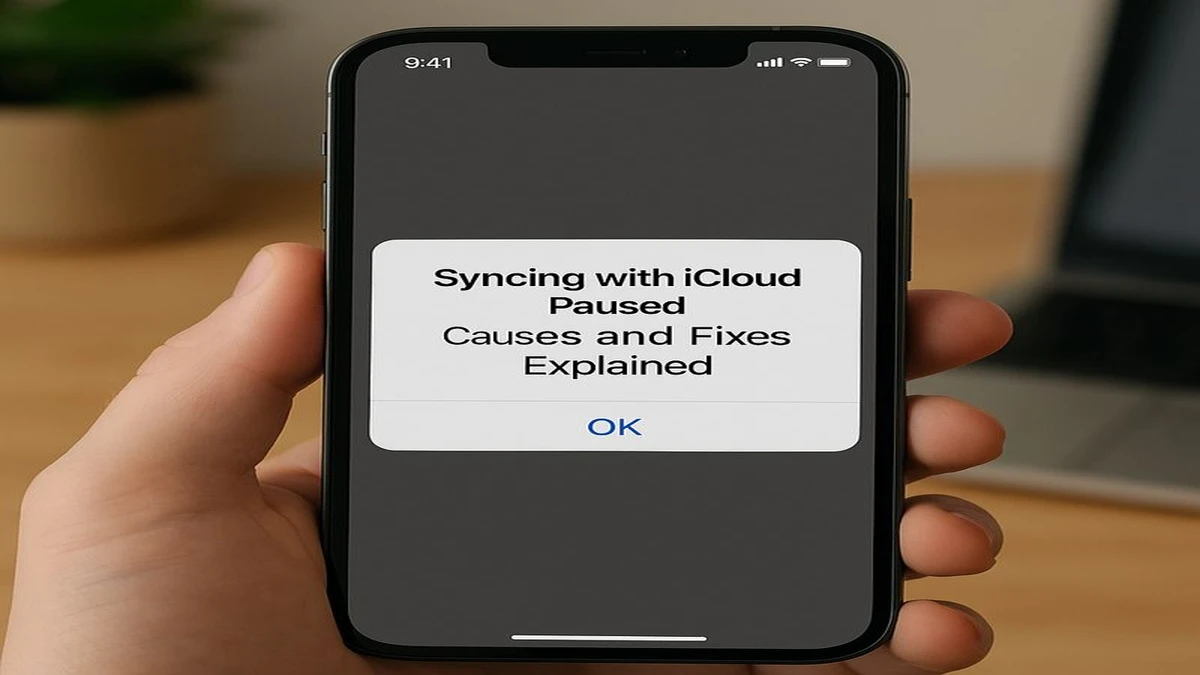
For users who encounter the message “Syncing with iCloud Paused,” the intent is immediate and practical: understand why their photos, files, messages, or backups have stopped updating—and how to resume them. In plain terms, the alert indicates that Apple’s iCloud services have temporarily halted data synchronization on a device, usually due to storage limits, power-saving settings, connectivity constraints, or account-related conditions. The pause is typically protective, not punitive, designed to preserve battery life, prevent data loss, or avoid failed uploads when conditions are unfavorable.
Within the first moments of seeing the warning, users often worry about lost photos, missing notes, or stalled backups. Yet in most cases, data remains safe on the device; it simply hasn’t been transmitted to Apple’s servers. Apple introduced more explicit “paused” indicators in recent iOS and macOS releases to improve transparency, especially as iCloud expanded to cover Photos, Drive, Messages, Health, and device backups. These indicators surfaced alongside broader changes to power management, optimized storage, and background networking rules in iOS 15 and later, reflecting Apple’s emphasis on efficiency and user control.
This article explains what triggers iCloud sync pauses, how Apple’s cloud architecture prioritizes resources, and what steps reliably restore syncing. It also examines the trade-offs Apple makes between convenience, privacy, and device longevity—trade-offs that increasingly shape how personal data moves across the Apple ecosystem.
What “Syncing with iCloud Paused” Actually Means
At a technical level, iCloud synchronization relies on background processes that upload and reconcile data between devices and Apple’s servers. When syncing is paused, those background tasks are temporarily suspended. This can apply selectively—Photos may pause while Notes continues—or globally across iCloud services, depending on the trigger.
Apple’s system status messages distinguish between errors and pauses. Errors indicate failures that require intervention, such as authentication problems. Pauses, by contrast, are conditional and reversible. Common conditions include Low Power Mode, insufficient iCloud storage, network restrictions like Low Data Mode, or prolonged inactivity on Wi-Fi. Apple’s documentation emphasizes that pauses are intentional safeguards that resume automatically once conditions improve.
Importantly, pausing does not delete data or roll back changes. New photos remain on the device, files saved to iCloud Drive remain local, and messages continue to send if alternative routing is available. The pause simply defers cloud synchronization until the system determines it is efficient and safe to proceed.
The Role of iCloud Storage Limits
One of the most frequent causes of paused syncing is depleted iCloud storage. Apple provides 5 GB of free iCloud storage per Apple ID, a limit unchanged since iCloud’s launch in 2011. As iPhone cameras advanced and services expanded, that allotment became insufficient for many users, particularly those syncing Photos and device backups.
When storage fills, iCloud halts uploads to prevent partial or failed sync states. The system may display a pause message urging users to manage storage or upgrade their plan. Apple offers paid tiers—50 GB, 200 GB, and 2 TB—integrated into Apple One bundles, reflecting a broader shift toward subscription-based cloud services.
Apple support materials note that storage pressure can pause specific services first, often Photos or Backups, because they are the largest contributors to usage. Managing storage by deleting old backups, offloading large files, or upgrading storage typically restores syncing within minutes.
Power Management and Low Power Mode
Battery conservation plays a central role in iCloud behavior. When Low Power Mode is enabled—automatically suggested when battery falls below 20 percent—iOS reduces background activity, including iCloud syncing. This design choice prioritizes device availability over background data transfer.
Apple introduced Low Power Mode in iOS 9 and expanded its scope in subsequent releases, aligning with stricter background execution policies. According to Apple’s platform guidelines, background tasks must justify energy use; cloud sync is considered deferrable. As a result, users frequently see “Syncing with iCloud Paused” during travel or long days away from chargers.
Once the device is charged above a threshold or Low Power Mode is disabled, syncing typically resumes without further action. This behavior reflects Apple’s broader philosophy of conserving energy invisibly while surfacing clear indicators when trade-offs occur.
Network Conditions and Data Constraints
iCloud syncing is optimized for stable, high-bandwidth connections. When a device is on cellular data with Low Data Mode enabled, or on congested networks, iOS may pause syncing to avoid excessive data usage. Apple introduced Low Data Mode in iOS 13 to give users granular control over background data consumption.
Wi-Fi quality also matters. Intermittent or captive networks—common in hotels, airports, and cafés—can interrupt uploads. In such cases, iCloud may pause until a reliable connection is detected. Apple’s support guidance recommends connecting to power and Wi-Fi for large sync operations, especially Photos and backups.
This network sensitivity underscores Apple’s attempt to balance automation with respect for user resources. The pause message functions as a signal that conditions are suboptimal, not that something is broken.
Device Settings That Commonly Trigger Pauses
Several settings influence iCloud’s background behavior. Understanding them clarifies why pauses occur and how to prevent them.
| Setting or Condition | Effect on iCloud Sync | Typical Resolution |
|---|---|---|
| Low Power Mode | Pauses most background syncing | Charge device or disable mode |
| iCloud storage full | Stops uploads to iCloud | Free space or upgrade plan |
| Low Data Mode | Limits background data use | Disable for Wi-Fi or cellular |
| Background App Refresh off | Reduces sync opportunities | Enable for iCloud services |
| Prolonged offline state | Defers reconciliation | Reconnect to stable network |
These controls reflect Apple’s layered approach: users retain agency, while defaults aim to minimize unintended costs.
Photos: The Most Visible Pause
Photos is the service where pauses are most noticeable. With iCloud Photos enabled, images and videos upload continuously in the background. Large files, such as 4K video or ProRAW images introduced in recent iPhone models, intensify the load.
Apple’s Photos architecture prioritizes recent content and thumbnails first, deferring full-resolution uploads when conditions are poor. A pause message may appear when the backlog grows. Users often see counts like “Uploading 1,234 items,” reinforcing the perception of delay.
Experts note that Photos syncing illustrates Apple’s trade-offs clearly. As digital imaging researcher Lev Manovich has observed, modern photography is “computationally and infrastructurally heavy,” relying on cloud pipelines as much as lenses. Pauses are a byproduct of that complexity.
Messages, Notes, and iCloud Drive
Text-based services like Messages and Notes consume far less data, but they are still subject to the same background rules. Messages in iCloud, introduced in iOS 11.4, syncs conversations across devices to maintain consistency. If syncing pauses, messages continue locally but may not appear immediately on other devices.
iCloud Drive behaves similarly. Files saved locally remain accessible, but cross-device availability waits until syncing resumes. For users collaborating across devices—Mac, iPad, iPhone—the pause can feel disruptive, even though no data is lost.
Apple emphasizes eventual consistency: once conditions normalize, services reconcile automatically, resolving conflicts based on timestamps and versioning.
Expert Perspectives on Cloud Pausing
Technology analyst Ben Thompson has argued that Apple’s cloud design reflects “local-first principles,” where devices remain fully functional even when cloud services defer. This contrasts with platforms that rely on constant connectivity.
User experience researcher Nielsen Norman Group notes that explicit pause messages improve trust by explaining delays rather than masking them. Transparency, they argue, reduces user anxiety even when functionality is temporarily limited.
Former Apple engineer and cloud commentator John Siracusa has highlighted Apple’s cautious approach to background activity, noting that aggressive syncing can degrade battery life and user satisfaction. Pauses, in this view, are a sign of restraint rather than failure.
A Timeline of iCloud Sync Evolution
| Year | Milestone | Impact on Sync Behavior |
|---|---|---|
| 2011 | iCloud launch | Basic device backups and data sync |
| 2014 | iCloud Drive introduced | File-based syncing expands |
| 2019 | Low Data Mode added | Network-aware background limits |
| 2021 | iOS 15 transparency updates | Clearer pause indicators |
| 2023 | Advanced data protections | Greater emphasis on privacy and efficiency |
This progression shows how pauses became more visible as iCloud’s scope widened.
Privacy, Security, and Pauses
Pausing sync can also intersect with security features. Two-factor authentication issues, password changes, or account verification prompts can temporarily halt syncing until resolved. Apple’s expanded end-to-end encryption for iCloud data, rolled out with Advanced Data Protection, adds additional checks that may delay synchronization during setup or recovery.
These safeguards reinforce Apple’s privacy posture. Sync pauses can indicate that the system is ensuring data integrity before transmission, especially after account changes.
How to Resume Syncing Reliably
While many pauses resolve automatically, certain steps consistently restore syncing:
- Connect to a stable Wi-Fi network.
- Plug the device into power.
- Disable Low Power Mode.
- Check iCloud storage usage.
- Ensure iCloud services are enabled per app.
Apple’s support guidance emphasizes patience: large backlogs may take hours to clear, especially for Photos. Interrupting the process repeatedly can extend delays.
Takeaways
- “Syncing with iCloud Paused” is a protective, temporary state.
- Storage limits and power-saving settings are leading causes.
- Network quality strongly influences background syncing.
- Pauses do not delete or corrupt data.
- Photos and backups are most affected due to size.
- Apple prioritizes battery life and efficiency over constant syncing.
Conclusion
The message “Syncing with iCloud Paused” encapsulates the quiet negotiations happening inside modern devices. Apple’s cloud is designed not for relentless immediacy, but for balance—between convenience and conservation, automation and control. Pauses are signals that the system is optimizing for conditions it deems responsible, even if that patience frustrates users in the moment. Understanding the reasons behind these pauses reframes them not as failures, but as design choices shaped by battery physics, network realities, and privacy commitments. As personal data grows heavier and devices more mobile, such pauses may become not the exception, but the norm—brief intermissions in a cloud that never truly stops.
FAQs
Why does my iPhone say syncing with iCloud paused?
Most commonly due to Low Power Mode, full iCloud storage, or limited network conditions.
Will I lose data if syncing is paused?
No. Data remains on your device and syncs once conditions improve.
How long does iCloud stay paused?
It varies; syncing usually resumes automatically when power, storage, or connectivity improves.
Does Low Power Mode stop all iCloud syncing?
It pauses most background syncing but resumes when the mode is disabled or battery is charged.
Can I force iCloud to resume syncing?
You can improve conditions—Wi-Fi, power, storage—but there is no manual override button.
References
- Apple Support. (2024). If iCloud Photos isn’t syncing. https://support.apple.com/en-us/HT204264
- Apple Support. (2024). Manage your iCloud storage. https://support.apple.com/en-us/HT204247
- Apple Support. (2023). Use Low Power Mode on your iPhone. https://support.apple.com/en-us/HT205234
- Apple Developer Documentation. (2023). Background execution and energy efficiency. https://developer.apple.com/documentation
- Nielsen Norman Group. (2022). Communicating system status in user interfaces. https://www.nngroup.com